Windows Server Setup Guide
Heads up about the classic “IIS SMTP relay” approach: Microsoft’s own documentation on configuring SMTP e-mail in IIS starts with a note that the IIS 6.0 SMTP Virtual Server component it describes has been unsupported since Windows Server 2003/2008 (“we no longer support doing so with IIS SMTP”). It still technically installs on modern Windows Server via the legacy IIS 6 Management Compatibility feature, but it’s not something to build a new setup on. The modern equivalent — connecting directly to
mx.msgwing.com, no local relay component needed — is the recommended approach below.
The username and password come from an account, and the account is free. Register at msgwing.com, activate, and copy the generated login and password — they are shown once. Mail leaves from that generated
@msgwing.comaddress rather than your own domain, and the cap is 200 messages a day with no paid tier that lifts it. Both limits are stated here rather than discovered later; if either one rules this out for you, the alternatives page names the tools that do not have them.
Top pick: point your app straight at ZeroSMTP (no local relay needed)
You don’t need any Windows feature installed at all — ASP.NET, classic ASP, and PHP-on-IIS applications can talk to mx.msgwing.com directly.
ASP.NET / IIS-hosted apps (web.config)
Add this to the application’s web.config (or machine.config for a server-wide default):
<configuration>
  <system.net>
    <mailSettings>
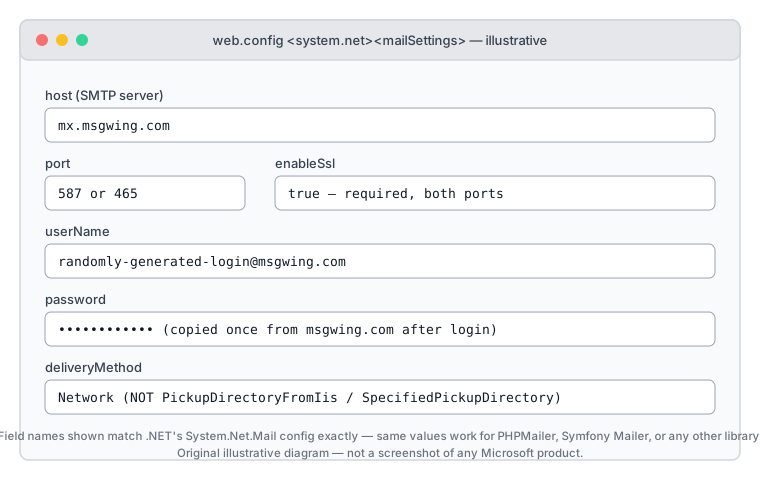
      <smtp deliveryMethod="Network" from="your-username@msgwing.com">
        <network
          host="mx.msgwing.com"
          port="587"
          enableSsl="true"
          userName="your-username@msgwing.com"
          password="your-password" />
      </smtp>
    </mailSettings>
  </system.net>
</configuration>
For port 465 (implicit SSL/TLS) instead of 587 (STARTTLS), set port="465" — enableSsl="true" covers both, .NET negotiates the right handshake for each port automatically.
Don’t hardcode the real password in web.config in source control — use ASP.NET’s configuration encryption or environment-specific config transforms for production.
PHP on IIS
Use PHPMailer or Symfony Mailer from this repo and point them at mx.msgwing.com:587/:465 directly — no IIS-level SMTP configuration needed. This also sidesteps PHP’s very limited built-in mail() function, which doesn’t support authenticated SMTP at all.
For scheduled/background tasks: PowerShell + Task Scheduler
For backup jobs, monitoring alerts, or anything else that isn’t a web app, use pwsh-zerosmtp.ps1 from this repo (built on the actively maintained Send-MailKitMessage module — see that file for why, not the deprecated Send-MailMessage cmdlet) as a scheduled task:
$env:ZEROSMTP_USERNAME = "your-username@msgwing.com"
$env:ZEROSMTP_PASSWORD = "your-password"
schtasks /create /tn "ZeroSMTP test" /tr "pwsh.exe -File C:\path\to\pwsh-zerosmtp.ps1" /sc daily /st 08:00
Store real credentials as a scheduled-task-scoped environment variable or via Register-ScheduledTask with a secured credential object — not in plain text in the task definition.
Exchange Server: Send Connector to a ZeroSMTP smart host
Read this caveat first: mail relayed through ZeroSMTP always goes out From an @msgwing.com address (see the FAQ) — it will not preserve your Exchange organization’s own domain. That rules this out as a replacement for your main mail flow. Where it’s genuinely useful is for system-generated notifications you don’t need to come from your own domain — DAG/replication alerts, transport queue warnings, message-tracking reports — routed through a dedicated Send Connector scoped narrowly to just that traffic, not your whole organization’s mail flow.
Exchange Admin Center: Mail flow → Send connectors → New → type Internet → “Route mail through smart hosts” → add mx.msgwing.com → smart host authentication: Basic Authentication over TLS with your ZeroSMTP username/password → scope the address space and source server(s) to whatever specific system/application is sending this notification traffic, not * for the whole org.
Exchange Management Shell equivalent:
$cred = Get-Credential  # ZeroSMTP username + password
New-SendConnector -Name "ZeroSMTP notifications" `
  -AddressSpaces "SMTP:*;1" `
  -SmartHosts "mx.msgwing.com" `
  -SmartHostAuthMechanism BasicAuthRequireTLS `
  -AuthenticationCredential $cred `
  -Port 587 `
  -RequireTLS $true `
  -SourceTransportServers "YourMailboxServerName"
Narrow -SourceTransportServers (and, if your topology needs it, a transport rule matching just the relevant sender) so this connector only ever handles the specific notification traffic it’s meant for.
Legacy: the classic IIS SMTP relay (not recommended for new setups)
Its own page now: IIS SMTP relay and Microsoft 365 — the queue and Badmail directories where this fails silently, the three settings that matter, and the three options when the application cannot be reconfigured. The short version is below.
If you’re maintaining an old application that only supports “deliver to local SMTP server” and can’t be reconfigured to connect directly, the Microsoft doc linked above covers installing the legacy SMTP Server Windows feature and configuring it (via the IIS 6.0 Manager console) as a relay: Properties → Delivery → Outbound Security (basic auth with your ZeroSMTP username/password) and Delivery → Advanced → Smart host set to mx.msgwing.com, with outbound port 587 or 465 configured under Outbound connections. Given Microsoft’s own unsupported-since-2008 notice, treat this as a last resort, not a starting point.
Connection reference
Verifying it works
Check the network path before debugging any application config. On a Windows Server with Node available:
npx zerosmtp-check
It tests ports 25, 587 and 465 from that machine, reports whether STARTTLS and the certificate check pass, and lists the AUTH mechanisms the server offers. Nothing is installed, no credentials are sent and no mail leaves the box — the conversation stops after EHLO.
No Node on that server, which is normal on a locked-down box? The check-connection.ps1 script in this repository does the same with nothing but PowerShell.
If the send is refused rather than hanging, the network is fine and the server is saying no for a reason. Paste what it said:
npx zerosmtp-check --explain "535 5.7.139 Authentication unsuccessful"
Send-MailMessage and System.Net.Mail rewrite the server’s answer before you see it, which is why the string in your log is often not the one Exchange Online sent. Every error message and what it means covers seventeen of them, each with whether the cause can still be turned back on before the end of December 2026.
If it hangs instead, see TROUBLESHOOTING.md — Windows Server on some cloud providers is subject to the same outbound port blocking as Linux VMs, and that looks identical to a server being down.
Updated 23 Aug 2026