Printer Scan-to-Email SMTP setup — Ricoh, Canon, Xerox, HP, Kyocera, Konica Minolta, Sharp, Brother, Epson, Lexmark
How to configure scan-to-email on a network printer or multifunction device (MFP) using an SMTP relay that still accepts a plain username and password — including what to do when Microsoft 365 stops accepting yours.
Scan-to-email stopped working? Jump to Error messages or Why it broke.
Contents
- Why scan-to-email is breaking in 2026–2027
- Error messages and what they mean
- Your options
- Settings to enter (all brands)
- Where the settings live, by brand — HP · Canon · Ricoh · Xerox · Kyocera · Konica Minolta · Sharp · Brother · Epson · Lexmark
- Known exception: Canon Maxify MB2755
- Testing and troubleshooting
- Limitations
Why scan-to-email is breaking in 2026-2027
For years, MFPs sent scans through smtp.office365.com with a mailbox username and password (Basic authentication). Microsoft is ending that.
Per Microsoft’s updated deprecation timeline, Basic auth for SMTP AUTH is disabled by default on existing tenants at the end of December 2026, unavailable by default for tenants created after that, with a final removal date to be announced in the second half of 2027. An admin can still re-enable it until then — that’s breathing room, not a fix.
Note on conflicting dates. Print dealers and vendor blogs quote various dates (March 2026, September 2025, and others) because Microsoft has revised this timeline more than once. Treat Microsoft’s own announcement as authoritative and re-check it before planning around a specific date.
Manufacturers have published their own advisories:
- Ricoh — response to the Basic auth phase-out and how to configure OAuth 2.0 for O365 SMTP
- Xerox — Exchange Online authentication changes and support article KB0431233; Xerox is shipping firmware that adds OAuth 2.0 across much of its range
- Kyocera — offers the Exchange Online Connector (EOC) utility for supported devices
- Canon, Konica Minolta, Sharp, HP, Brother, Epson, Lexmark — check your model’s support page for an OAuth 2.0 firmware update before assuming one exists; on older hardware it usually doesn’t
It’s not just scan-to-email
Scan-to-email is what users notice, but every mail-sending function on an MFP uses the same SMTP credentials. Per Ricoh’s advisory, these all break together:
- Scan to Email
- Internet Fax (send)
- Fax-to-Email forwarding
- On-demand email notification (checking device status by email)
- Automatic email notification — error and toner reports to the administrator
- Error notifications from Mail to Print
The wording is Ricoh’s, but the pattern applies to any brand: the device’s own alerting stops too. Nobody notices that until a fault goes unreported. For the same problem across NAS units, backup jobs, monitoring and line-of-business apps, see AFFECTED-SYSTEMS.md.
Error messages and what they mean
What the panel shows, and what it actually means:
| What you see | What it means |
|---|---|
Kyocera send error 1102 / 0x1102 | Kyocera’s code for an SMTP authentication failure — same root cause when pointing at Microsoft 365. |
A panel code is the hardest version of this to act on, because it looks like the machine is failing and says nothing about a mail server. If you have a laptop on the same network:
npx zerosmtp-check --explain 1102
It names the cause, says whether an administrator can still switch it back on, and — the part that matters on a service call — says the device does not need replacing. | Authentication failed / Login failed on the panel | Vendor wording for a refused username/password. Your credentials are fine; the method is switched off. | | 535 with any wording | The server refused Basic auth for SMTP AUTH. | | Connection times out, no auth error at all | Not authentication — the network is blocking outbound SMTP. See TROUBLESHOOTING.md. | | Certificate verify failed on the panel | The device’s trust store is too old for the server certificate, not an auth problem — see the Canon Maxify MB2755 case. |
The exact server-side strings, the four different reasons Basic auth gets refused, and the wording used by non-printer clients are all in SMTP AUTH error messages. Worth reading if you can re-enable the setting, because three of those four causes are reversible until the end of December 2026.
Your options
- OAuth 2.0 on the device — the official route. Requires firmware that supports it. Check your vendor advisory above; newer Xerox, Ricoh, Canon and Kyocera models have a path, most older hardware does not and never will.
- Direct Send or an SMTP relay connector in Microsoft 365 — authenticates by static public IP instead of a password, so devices need no changes. Only delivers to your own tenant’s domains. Microsoft’s guide.
- Your own internal relay (Postfix etc.) that handles modern auth upstream — see SYSTEM-MTA.md.
- A paid SMTP service with your own verified domain.
- ZeroSMTP — free, still accepts plain username/password, so the device only needs three fields changed. Mail goes out from an
@msgwing.comaddress, not your company domain (why), and there’s a 200 emails/day limit. Good for scans that just need to reach someone internally, homelabs, schools and small offices. Not appropriate where the sender must be your own domain — use option 1, 2 or 4 for that.
Full comparison in EXCHANGE-ONLINE-SMTP-AUTH.md.
Settings to enter (all brands)
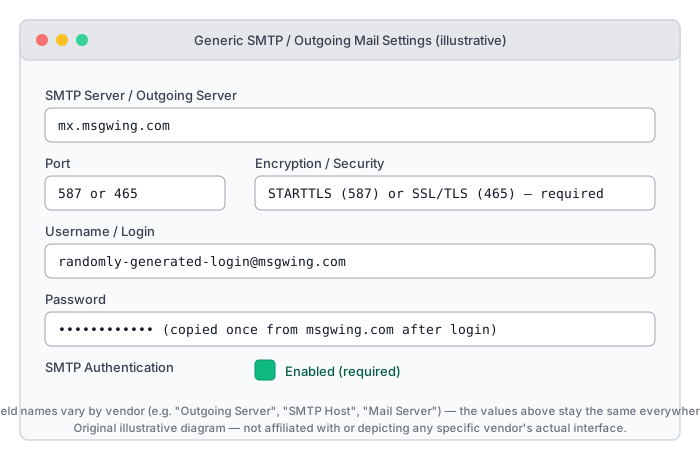
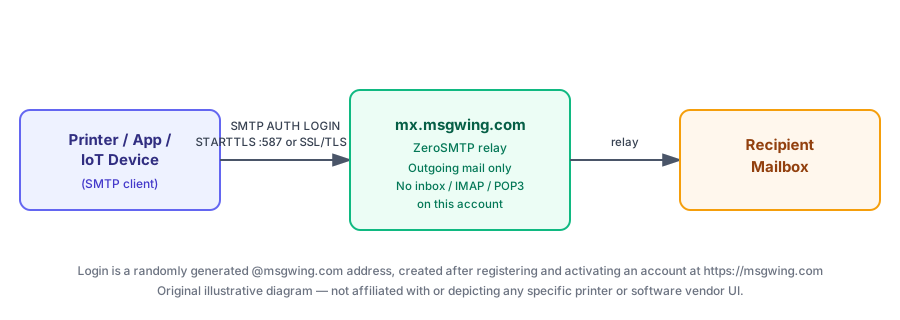
First, get credentials: register a free account at msgwing.com and activate it, then copy the randomly generated @msgwing.com username and password. They’re shown once — store them in the printer’s own credential store, not a shared document.
| Setting | Value |
|---|---|
| SMTP server / outgoing server | mx.msgwing.com |
| Port | 587 (STARTTLS) — recommended, or 465 (SSL/TLS) |
| Encryption | STARTTLS on 587, or SSL/TLS on 465 — required, never “None” |
| Authentication | Enabled, method LOGIN or PLAIN |
| Username | your @msgwing.com login |
| Password | your @msgwing.com password |
| From / sender address | your @msgwing.com login (many printers require From == Username) |
Which port? Use
587if the printer’s menu offers a single port field and one “use SSL/encryption” toggle — the most widely supported combination across printer firmware. Use465only if the device explicitly offers an “SSL” (implicit TLS) mode separate from “STARTTLS”/”TLS”.
Home printer, and not sure what any of this means? Scan to email from a home printer explains what an SMTP server is and why Gmail and Hotmail stopped working, without assuming you administer a mail system.
Where the settings live, by brand
Menu wording shifts between firmware versions, but locations are stable enough to be a reliable starting point. Each entry links to the vendor’s own current documentation — check there if the wording has moved on your model.
Pick your brand for just that menu path, or scroll down for all ten at once.
HP
Its own page: HP printer: “SMTP server requires authentication” — the three reasons that message appears, which HP models can do OAuth and which HP has ruled out, and what to do about each.
Embedded Web Server (browser → printer’s IP) → Networking or Scan tab → TCP/IP Settings → Outgoing Email / Scan to Email → Outgoing Email Profiles → add a profile using the values above. (Find the printer’s IP from the panel: Settings → Networking → TCP/IP Settings.)
Canon
Remote UI (browser → printer’s IP) → Settings/Registration → TX Settings → E-Mail/I-Fax Settings → SMTP Server Settings. Covers imageRUNNER, imageCLASS, Maxify and PIXMA business models. On the Maxify MB2755 this menu also holds a certificate-verification toggle — see the exception below.
Ricoh
Web Image Monitor (browser → printer’s IP, log in as administrator) → Device Management → Configuration → Email (under Device Settings) → set SMTP Server Name, SMTP Port No., and enable SMTP Authentication. Field names stay consistent across most Ricoh models even when the surrounding layout differs. → Ricoh: configure OAuth 2.0 for O365 SMTP (same knowledge base — search it for “SMTP authentication” for the Basic-auth equivalent on your model)
Xerox
Embedded Web Server → Properties → Connectivity → Protocols → SMTP Server → General. Newer app-based models use Properties → Apps → Email → Setup instead. → Xerox: configure SMTP server settings · Xerox: Exchange Online authentication changes
Kyocera
Command Center RX (browser → printer’s IP, admin login) → Advanced → E-mail → SMTP → General. Set SMTP Security to match your chosen port, and confirm SMTP (E-mail TX) is On under Network Settings → Protocol. → Kyocera Command Center RX e-mail settings
Konica Minolta
Touch panel: Utility → Administrator Settings → Network Settings → E-Mail Settings → E-Mail TX (SMTP). Web Connection: Network → E-mail Setting → E-mail TX (SMTP). → Konica Minolta: configuring the Scan to E-mail environment
Sharp
Settings (Administrator) → System Settings → Network Settings → Service Settings → SMTP tab. Some models expose this on the web page as Settings → E-mail. Set Primary Server, Port Number, Sender Address, and enable SMTP authentication and SSL/TLS. → Sharp: network settings manual
Brother
Web Based Management (browser → printer’s IP) → Network → Protocol → SMTP Client. Set SSL/TLS to STARTTLS for port 587, or SSL for 465.
Epson
Printer’s web configuration page → Network Scan or Basic → Email Server → enter server, port and authentication values. Applies to WorkForce and EcoTank Pro models with Scan-to-Email.
Lexmark
Embedded Web Server → Settings → E-mail/FTP Settings → SMTP Setup. Server goes in Primary SMTP Gateway, port in Primary SMTP Gateway Port, and set Use SSL/TLS to Required. → Lexmark Embedded Web Server Administrator’s Guide (PDF)
Confirmed this on real hardware? The Canon section below exists because a contributor (
@kevinbytnar) tested that exact model and reported what worked, including a firmware quirk no manual mentions. If you verify — or need to correct — any path above on your own device, please open an issue or a PR with a screenshot. Hardware-confirmed reports are worth far more here than anything written from a manual.
Known exception: Canon Maxify MB2755
One entry in the growing device case studies list — hit something similar on your own hardware? See that page for how to report it.
Most printers validate mx.msgwing.com’s certificate correctly and should keep certificate verification enabled — the safe default recommended in TROUBLESHOOTING.md. One confirmed exception is the Canon Maxify MB2755 (2016-era SOHO inkjet MFP):
- The MB2755’s firmware ships a fixed, non-updatable root CA store that predates modern Let’s Encrypt root certificates. There’s no way to import a root certificate, and — confirmed by re-testing after a firmware update — no firmware update adds one either.
- Which exact Let’s Encrypt chain
mx.msgwing.compresents can change over time (certificate authorities rotate intermediates and occasionally change which root a chain is built on). Anopenssl s_client -connect mx.msgwing.com:587 -starttls smtpon 2026-08-03 showed a chain built entirely on elliptic-curve (ECDSA) certificates — leaf →Let's Encrypt YE1→ISRG, Root YE→ISRG Root X2— rather than the classic RSA chain throughISRG Root X1seen in earlier testing. Modern OS trust stores accept this fine; the MB2755’s frozen CA store, already missing the more commonISRG Root X1, has no path to trust this newer chain either. - On both
465and587, this model currently requires disabling “Nie weryfikuj certyfikat” / “Don’t verify certificate”. An earlier version of this page reported587working without that workaround — that was accurate for the chain being served at the time, but isn’t a setting on the printer; it depends on which chain the server happens to present at connection time, which can change. Treat “disable verification on this model” as the durable answer rather than tying it to a specific port.
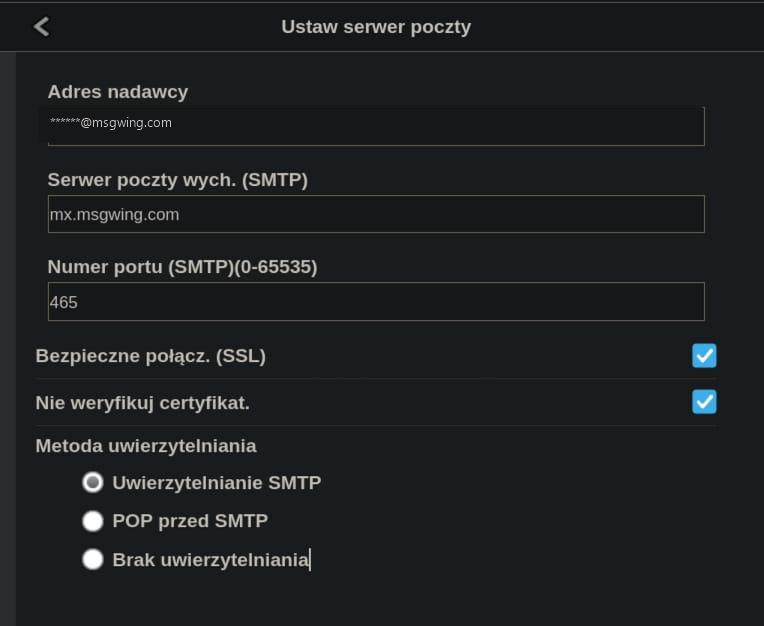
A screenshot previously shown here for port 587 had “Nie weryfikuj certyfikat” unchecked — that reflected the chain the server was presenting at the time, not a setting specific to that port. It’s been removed rather than left up as a now-inaccurate example; use the screenshot above (verify certificate: off) for either port.
Security note: disabling certificate verification means the printer no longer confirms it’s talking to
mx.msgwing.comrather than an on-path attacker on the same network — the session is still encrypted, but the server’s identity is unverified. Only do this if your device is genuinely affected by the root-CA gap above. For anything that isn’t an old Canon Maxify (or a similarly outdated embedded device), keep verification enabled per TROUBLESHOOTING.md.
Testing and troubleshooting
- Check the network path first. Run
check-connection.shorcheck-connection.ps1from a machine on the same network. A firewall blocking outbound 587/465 looks identical to an authentication problem from the printer’s panel. - Send a test scan to your own inbox.
- If it fails, read the printer’s event/job log rather than the panel message — it usually contains the actual SMTP response. Then re-check:
- encryption is not set to “None”
- the From address matches the username (many firmwares require this)
- the password was retyped, not pasted with a trailing space
- Deliverability testing (SPF/DKIM/DMARC): see
SendEmailTest_mail-tester.com.ps1and the reputation section in the README.
More causes and fixes in TROUBLESHOOTING.md.
Limitations
- Send-only. No IMAP/POP3, no inbox — a printer configured this way sends scans out but cannot receive. There’s no “receive” test to run.
- One account = one From address. Printers that need a different sender per user should use a shared queue or an app-level relay (see APPS.md) rather than dozens of individual accounts.
- 200 emails/day per account — see sending limits.
- Sender is
@msgwing.com, never your own domain (why).
Updated 23 Aug 2026